Sunday, March 12, 2017

[SOLVED]CRITICAL! LDAP primary MDB database is 90% full in Zimbra

You may get this type errors as email in the zimbra admin email account. This was related with the zimbra 8.x changes in ldap db configuration. You may probably see this issue during a zimbra migration or restore task
First check the following values in your zimbra
#su - zimbra
#zmlocalconfig -s ldap_db_maxsize
ldap_db_maxsize = 85899345920
#zmlocalconfig -s ldap_accesslog_maxsize
ldap_accesslog_maxsize = 85899345920
You can see the db size and accesslog size is same that is 80 GB , Now please setup the size as follows,
# zmlocalconfig -e ldap_db_maxsize=85899345920

# zmlocalconfig -e ldap_accesslog_maxsize=10737418240
Give some time for applying the changes
# sleep 90
Now stop slapd
# ldap stop
Go to database directory
# cd /opt/zimbra/data/ldap/mdb/db
Take a backup of ldap database
# /opt/zimbra/libexec/zmslapcat /opt/zimbra/data/ldap/mdb/db
Rename the original db to .old
# mv data.mdb data.mdb.old
Recreate database with new size and restore from backup
# /opt/zimbra/openldap/sbin/slapadd -q -b "" -F /opt/zimbra/data/ldap/config -l /opt/zimbra/data/ldap/mdb/db/ldap.bak
Now start slapd
# ldap start
Tar the original if you need
# gzip data.mdb.old
The above will fix your issue

Memcached Server Installation for Vbulletin and wordpress

Memcached is a memory caching system. This will help to increase speed of your vbulletin or wordpress wesites. You can install it easily as follows,
Download the memcached server from http://memcached.org/
 wget -c  http://memcached.googlecode.com/files/memcached-1.4.15.tar.gz
 tar -xzf  memcached-1.4.15.tar.gz
 cd memcached-1.4.15/
 yum -y install libevent libevent-devel
 ./configure --prefix=/opt/memcached
 make
 make install
Now install init script . I wrote an init script for redhat and centos servers , you can use it to start/stop memcached.
 wget -c http://files.syslint.com/conf/memcached.redhar.rc.txt
 mv -f memcached.redhar.rc.txt /etc/init.d/memcached
 chmod 750 /etc/init.d/memcached
 mkdir /var/run/memcached
 /etc/init.d/memcached start
 chkconfig --add memcached
 chkconfig memcached on
Install php-pecl memcache
Download the latest stable memcached from http://pecl.php.net/package/memcache
wget -c http://pecl.php.net/get/memcache-2.2.7.tgz
 tar -xzf  memcache-2.2.7.tgz
 cd memcache-2.2.7/
 phpize
 ./configure
 make
 make install
Now restart apache and create a phpinfo page and test whether the memcache options is showing or not. If it is there then you installed php module . If not you need to check your php.ini settings and enable memcache module
Vbulletin Configuration
Edit the Vb configuration file includes/config.php and uncomment the following lines
$config['Datastore']['class'] = 'vB_Datastore_Memcached';
$i = 0;
// First Server
$i++;
$config['Misc']['memcacheserver'][$i]           = '127.0.0.1';
$config['Misc']['memcacheport'][$i]                     = 11211;
$config['Misc']['memcachepersistent'][$i]       = true;
$config['Misc']['memcacheweight'][$i]           = 1;
$config['Misc']['memcachetimeout'][$i]          = 1;
$config['Misc']['memcacheretry_interval'][$i] = 15;
Now restart apache server . Your vbulletin now works with memcached. You can see the performance difference within 1 to 2 hours.
WordPress Configuration
You may just install the wordpress memcached plugin and configure it from wordpress admin panel

How to install MariaDB Server in cPanel/WHM servers

MariaDB is a binary drop in replacement of the same MySQL version (for example MySQL 5.1 -> MariaDB 5.1, MariaDB 5.2 & MariaDB 5.3 are compatible. MySQL 5.5 will be compatible with MariaDB 5.5). What this means is that:
  • Data and table definition files (.frm) files are binary compatible.
  • All client APIs, protocols and structs are identical. All filenames, binaries, paths, ports, sockets, and etc… should be the same.
  • All MySQL connectors (PHP, Perl, Python, Java, .NET, MyODBC, Ruby, MySQL C connector etc) work unchanged with MariaDB.
  • The mysql-client package also works with MariaDB server.
  • The shared client library is binary compatible with MySQL’s client library.
This means that for most cases, you can just uninstall MySQL and install MariaDB and you are good to go. (No need to convert any datafiles if you use same main version, like 5.1). You must however still run mysql_upgrade to finish the upgrade. This is needed to ensure that your mysql privilege and event tables are updated with the new fields MariaDB uses. MariaDB do a monthly merges with the MySQL code base to ensure its compatibility and get any and all features and bug fixes Oracle adds.
There are some installation issues with PHP5 that you should be aware of ( REF:https://mariadb.com/kb/en/installation-issues-with-php5 )

What are the advantages of using MariaDB Server ?

  • Faster and safer replication: Group commit for the binary log. This makes many setups that uses replication and lot’s of updates more than 2x times faster.
  • Indexes for the MEMORY(HEAP) engine are faster. According to a simple test, 24% faster on INSERT for integer index and 60% faster for index on a CHAR(20) column.
  • CHECKSUM TABLE is faster.
  • MariaDB improved the performance of character set conversions (and removed conversions when they were not really needed). Overall speed improvement is 1-5 % (according to sql-bench) but can be higher for big results sets with all characters between 0x00-0x7f.
  • Pool of Threads in MariaDB 5.1 and even better in MariaDB 5.5. This allows MariaDB to run with 200,000+ connections and with a notable speed improvement when using many connections.
  • There are some improvements to the DBUG code to make its execution faster when debug is compiled in but not used.
  • Our use of the Aria storage engine enables faster complex queries (queries which normally use disk-based temporary tables). The Aria storage engine is used for internal temporary tables, which should give a speed up when doing complex selects. Aria is usually faster for temporary tables when compared to MyISAM because Aria caches row data in memory and normally doesn’t have to write the temporary rows to disk.
  • The test suite has been extended and now runs much faster than before, even though it tests more things.

How can you replace MySQL with MariaDB Server in cPanel installed systems ?

Below you will find some steps on how to affectively stop cPanel/WHM from maintaining MySQL and begin utilizing MariaDB for any and all database activity on your server. MariaDB is “An enhanced, drop-in replacement for MySQL” (Source: https://mariadb.com) .
We recommend only experienced systems administrators perform the above and we are not responsible for any possible data loss.
Step 1: Backup existing MySQL data
Make sure to save all existing data just in case there are any issues.
# mysqldump --all-databases --routines --triggers > /home/db_dump/alldb.sql
# service mysql stop
# cp -r /var/lib/mysql/mysql /home/db_dump/
# service mysql start
Step 2: Disable the targets so cPanel no longer handles MySQL updates #ONLY FOR cPanel 11.36+
The following will mark the versions of MySQL we distribute as uninstalled so they are no longer maintained by cPanel/WHM
# /scripts/update_local_rpm_versions --edit target_settings.MySQL50 uninstalled
# /scripts/update_local_rpm_versions --edit target_settings.MySQL51 uninstalled
# /scripts/update_local_rpm_versions --edit target_settings.MySQL55 uninstalled
Step 3: Remove existing MySQL RPM’s so theres a clean slate for MariaDB
Important: The below command will uninstall the MySQL RPM’s!
# /scripts/check_cpanel_rpms --fix --targets=MySQL50,MySQL51,MySQL55
Step 4: Create a yum repository for MariaDB
Access https://downloads.mariadb.org/mariadb/repositories and select the DISTRO and place the repo content to /etc/yum.repos.d/MariaDB.repo
#nano /etc/yum.repos.d/MariaDB.repo

---------
# MariaDB 5.5 CentOS repository list - created 2013-06-23 21:13 UTC
# http://mariadb.org/mariadb/repositories/
[mariadb]
name = MariaDB
baseurl = http://yum.mariadb.org/5.5/centos6-amd64
gpgkey=https://yum.mariadb.org/RPM-GPG-KEY-MariaDB
gpgcheck=

--------
Step 5: install MariaDB using the following command
# yum install MariaDB-server MariaDB-client MariaDB-devel
If you are having any dependency problem, please remove PHP from the /etc/yum.conf file and then run yum command again. Please add it back to yum conf once the package is installed.
# /etc/init.d/mysql start
# mysql_upgrade
# /etc/init.d/mysql restart
Please make sure to add PHP back to exclude section of /etc/yum.conf file.
Final Step: Rebuild Easyapache/PHP to ensure modules are intact/working
# /scripts/easyapache --build
Done !

How to install and configure Linux, Apache, Mariadb and PHP (LAMP ) on Centos7 or RHEL7

1. Introduction

Short for Linux, Apache, MySQL and PHP, an open-source Web development platform, also called a Web stack, that uses Linux as the operating system, Apache as the Web server, MySQL as the RDBMS and PHP as the object-oriented scripting language. Perl or Python is often substituted for PHP.

2. Requirements

You may need an operating system RHEL 7 or Centos 7 in your dedicated or vps server. Please make sure to set a hostname for your server and its dns is pointing to the IP address of the server.

3. Installation

Please proceed with the following step by step procedures:

3.1 Install Apache

Apache2 is directly available as a CentOS 7.0 package, therefore we can install it like this:
# yum -y install httpd
Now configure your system to start Apache at boot time.
# systemctl start httpd.service
# systemctl enable httpd.service
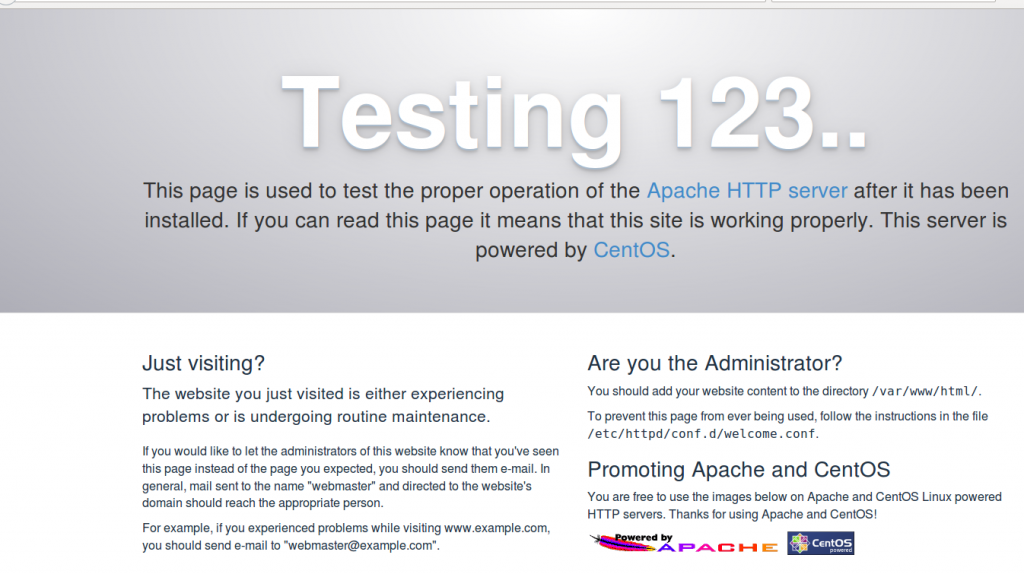
Now direct your browser to http://your-IP, and you should see the Apache2 place holder page:
apache-screen

3.2 Install MariaDB

To install MySQL, we do install mariadb like this:
# yum -y install mariadb-server mariadb
Then we create the system startup links for MySQL (So that MySQL starts automatically whenever the system boots) and start the MySQL server:
# systemctl start mariadb.service
# systemctl enable mariadb.service
Set passwords for the MySQL root account:
# mysql_secure_installation
NOTE: RUNNING ALL PARTS OF THIS SCRIPT IS RECOMMENDED FOR ALL MariaDB
      SERVERS IN PRODUCTION USE!  PLEASE READ EACH STEP CAREFULLY!

In order to log into MariaDB to secure it, we'll need the current
password for the root user.  If you've just installed MariaDB, and
you haven't set the root password yet, the password will be blank,
so you should just press enter here.

Enter current password for root (enter for none):
OK, successfully used password, moving on...

Setting the root password ensures that nobody can log into the MariaDB
root user without the proper authorisation.

Set root password? [Y/n] 
New password: <--yourmariadbpassword
Re-enter new password: <--yourmariadbpassword
Password updated successfully!
Reloading privilege tables..
 ... Success!

By default, a MariaDB installation has an anonymous user, allowing anyone to log into MariaDB without having to have a user account created for them.  This is intended only for testing, and to make the installation go a bit smoother.  You should remove them before moving into a production environment.

Remove anonymous users? [Y/n] <--ENTER
 ... Success!

Normally, root should only be allowed to connect from 'localhost'.  This
ensures that someone cannot guess at the root password from the network.

Disallow root login remotely? [Y/n] <--ENTER
 ... Success!

By default, MariaDB comes with a database named 'test' that anyone can
access.  This is also intended only for testing, and should be removed
before moving into a production environment.

Remove test database and access to it? [Y/n] <--ENTER
 - Dropping test database...
 ... Success!
 - Removing privileges on test database...
 ... Success!

Reloading the privilege tables will ensure that all changes made so far
will take effect immediately.

Reload privilege tables now? [Y/n] <--ENTER
 ... Success!

Cleaning up...

All done!  If you've completed all of the above steps, your MariaDB installation should now be secure.
Thanks for using MariaDB!
#

3.3 Install PHP

We can install PHP5 and the Apache PHP5 module as follows:
# yum -y install php php-mysql
We must restart Apache afterwards:
# systemctl restart httpd.service
Testing PHP5 / Getting Details About Your PHP5 Installation
# vi /var/www/html/info.php
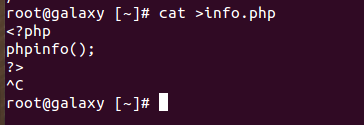
Now add the following phpinfo code content in this file.
php-info-code
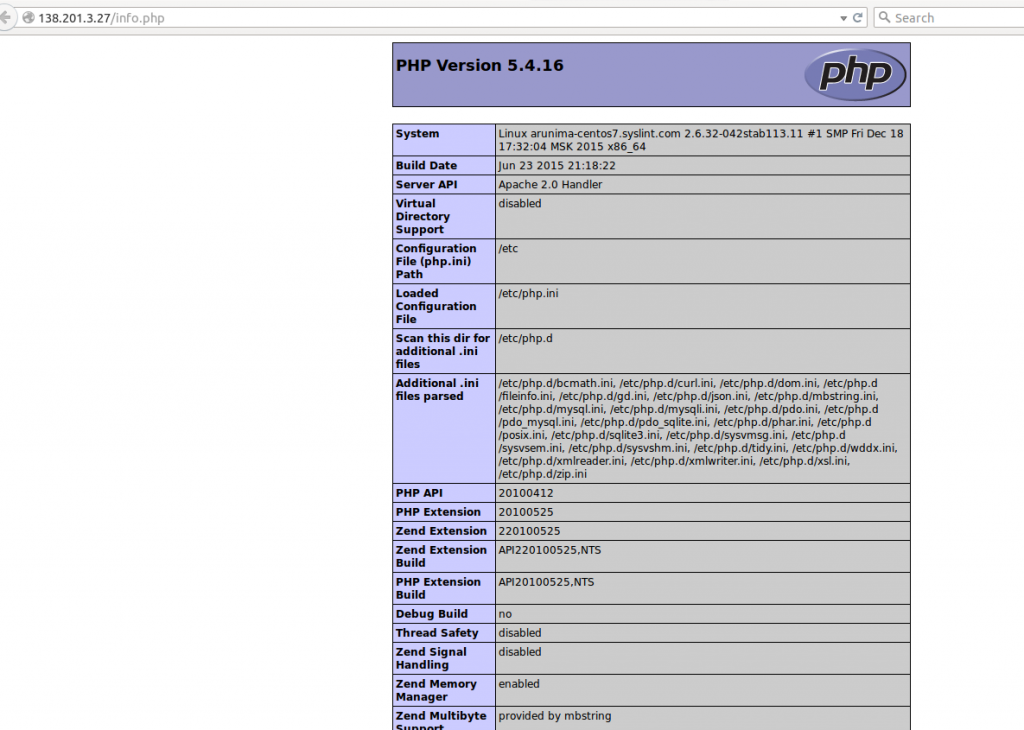
Now we call that file in a browser (e.g. http://Your IP/info.php):
phpinfo
You may need We have successfully configured Apache2 , mysql and php.

Replacing mod_rpaf with mod_remoteip in apache 2.4 Nginx Real_IP Problem Solution

Now apache 2.4 provide areal remoteIP software . It there will be enabled by default . You can check it as follows,
# httpd -l | grep mod_remoteip.c
mod_remoteip.c
If you get the above results that means the remoteip module already compiled and enable in apache. otherwise you can download it from
https://svn.apache.org/repos/asf/httpd/httpd/trunk/modules/metadata/mod_remoteip.c
And compile it as follows,
# apxs -cia mod_remoteip.c
You may now need to add the following lines to httpd.conf  for enabling this  REMOTE_ADDR with real visitor Ip as follows,
Add the following lines to httpd.conf
#LoadModule remoteip_module /usr/lib/apache/mod_remoteip.so    # This line only need if you compile this module alone
RemoteIPHeader X-Real-IP
RemoteIPInternalProxy X.X.X.X/24      # Your server IP address
Also please note this module is not available for  lower versions of apache like apache 2.2.x , for that you have to use the mod_rpaf module itself .